While writing the blog series Metalsmith Redux, I built a companion website that serves as a library of structured content sections. Very soon, it became clear that a search function was needed to find the things I was writing about. However, while Metalsmith delivers performance and security, search is somewhat challenging. They say "there is a plugin for that," but not so much for search. I discovered that the existing search plugins were ancient—most hadn't been updated in years and were effectively abandoned.
Rather than settle for outdated solutions, I built a new plugin using Fuse.js as the foundation. Fuse.js is an excellent library for this purpose—it provides fuzzy search capabilities crucial for handling user typos and variations —and unlike the old plugins, it's actively maintained and supported. Once I had the plugin built and generating search indexes, I had an excellent foundation to work with. That's where this story really begins.
The Search Challenge for Static Sites
Static site owners have always faced an uncomfortable choice when implementing search. External services, such as Algolia, provide excellent search capabilities but introduce dependencies, ongoing costs, and potential privacy concerns. Google Custom Search is free, but it comes with ads, tracks users, and offers limited customization options. What's been missing is a self-contained solution that provides the complete search experience users expect from modern websites—instant results, fuzzy matching, relevance ranking, and contextual highlighting—while maintaining the simplicity, privacy, and performance benefits of static hosting. This is exactly what the metalsmith-search plugin delivers.
The Challenge
Building search for static sites presents unique challenges. Without a server-side database to query, we need to maintain fast page load times while delivering relevant search results. Most importantly, we aim for a user experience that seamlessly connects search results to the actual content on the page. The solution involves generating a search index at build time and implementing intelligent client-side search with contextual highlighting. This approach gives us the best of both worlds: the performance of static sites with the interactivity users expect.
Quick Start
npm install metalsmith-search fuse.js
Add to your Metalsmith build after HTML generation:
.use(search({
  fields: { title: 10, content: 1, tags: 6 },
  output: 'search-index.json'
}))
Complete implementation guide and options at github.com/wernerglinka/metalsmith-search
Enter metalsmith-search
The metalsmith-search plugin generates a search index during the build process directly from the generated HTML. It generates lightweight JSON for fast loading while maintaining page metadata for rich search results. The structured data it produces makes it straightforward to build sophisticated search interfaces that can be triggered from anywhere on the site.
Implementation Overview
The implementation consists of three main components working together. First, we generate the search index at build time using metalsmith-search, which processes the final HTML output of each page. We then implement client-side search using Fuse.js for fuzzy matching, accessible via a search button located in the header of every page. Finally, we added search term highlighting, which enables users to easily spot search results within the actual content, creating a cohesive experience across the entire site.
Setting Up metalsmith-search
First, configure the plugin in your Metalsmith build:
const search = require('metalsmith-search');

metalsmith
  .use(search({
    // Configure which fields to index
    fields: {
      title: 10,     // Higher weight for titles
      content: 1,    // Base weight for content
      tags: 6        // Medium weight for tags
    },
    // Output file location
    output: 'search-index.json',
    // Additional metadata to include
    includeMetadata: ['url', 'date', 'type']
  }));
This generates a JSON file containing all the content in a searchable format. The weighting system ensures that matches in titles and tags rank higher than matches in body content, providing more relevant results.
Building the Search Interface
The Metalsmith Components Library demonstrates two complementary search implementations. A dedicated search page offers a focused search experience, with the interface always visible, making it ideal for documentation sites where search is a primary navigation method. An example can be found in the references section. The more common pattern places a search icon in the header navigation that reveals a search panel when clicked, keeping the interface clean while making search instantly accessible from any page. This is implemented as the library's site search.
Header Search Icon with Panel
The library's search implementation remains unobtrusive, displaying only a search icon in the page header. Clicking this icon triggers the full search panel to fade in while the header icon fades out. The panel reveals an input field alongside the same search icon, which now serves as the submit button. After the user enters their search term and clicks submit, they're directed to the results page.
<nav class="site-navigation">
  <button class="search-trigger" aria-label="Search">
    <svg class="search-icon">...</svg>
  </button>
</nav>

<!-- Search panel hidden by default -->
<div class="search-panel" id="search-panel" aria-hidden="true">
  <div class="search-container">
    <input type="text" id="search-input" placeholder="Search documentation...">
    <button id="search-clear" aria-label="Clear search">Clear</button>
    <div id="search-status" aria-live="polite"></div>
    <div id="search-results"></div>
  </div>
</div>
Dedicated Search Page
For sites where search serves as the primary navigation, such as documentation sites, the search results page can function as a standalone entry point. This approach skips the header icon entirely. Instead, the page displays the search partial directly, allowing users to enter and submit their search terms immediately upon arrival.
<main class="search-page">
  <h1>Search Documentation</h1>
  <div class="search-container">
    <input type="text" id="search-input" placeholder="Search documentation..." autofocus>
    <button id="search-clear" aria-label="Clear search">Clear</button>
    <div id="search-status" aria-live="polite"></div>
    <div id="search-results"></div>
  </div>
</main>
Both approaches use the same search partial component, ensuring consistency while serving distinct needs. The stand-alone page works well for direct access, whether through navigation links or bookmarked URLs. The header panel handles the more common scenario of quick searches during browsing.
JavaScript Search Implementation
Both search implementations share the same core functionality, with slight initialization differences:
For header search panel - initialize when panel opens
document.querySelector('.search-trigger')?.addEventListener('click', async () => {
  const panel = document.getElementById('search-panel');
  panel.setAttribute('aria-hidden', 'false');

  await initializeSearch();
  document.getElementById('search-input').focus();
});
For dedicated search page - initialize immediately
if (document.body.classList.contains('search-page')) {
  await initializeSearch();
}

// Shared initialization function
async function initializeSearch() {
  // Load search index if not already loaded
  if (!window.searchIndex) {
    const response = await fetch('/search-index.json');
    window.searchIndex = await response.json();

    // Initialize Fuse.js with the index
    window.fuse = new Fuse(window.searchIndex.entries, {
      keys: [
        { name: 'title', weight: 10 },
        { name: 'content', weight: 1 },
        { name: 'tags', weight: 6 }
      ],
      threshold: 0.3,
      includeMatches: true,
      minMatchCharLength: 2
    });
  }
}

// Debounced search function for performance
const performSearch = debounce((query) => {
  if (query.length < 2) {
    clearResults();
    return;
  }

  const results = window.fuse.search(query);
  displayResults(results, query);
}, 300);
The fuzzy search capability means users don't need to remember exact phrases. They can still search for "metlsmith" and find results for "Metalsmith", making the search more forgiving and user-friendly. The debounced search function prevents excessive processing during typing, improving performance, especially on slower devices.
The Magic: Search Term Highlighting
Here's where our implementation becomes particularly interesting. When users click search results, we add a query parameter to track what they searched for. This creates a connection between the search interface and the found search term on the destination page.
https:/blog/installing-metalsmith-components/?highlight=com#installing-metalsmith-components
Enhanced Search Results
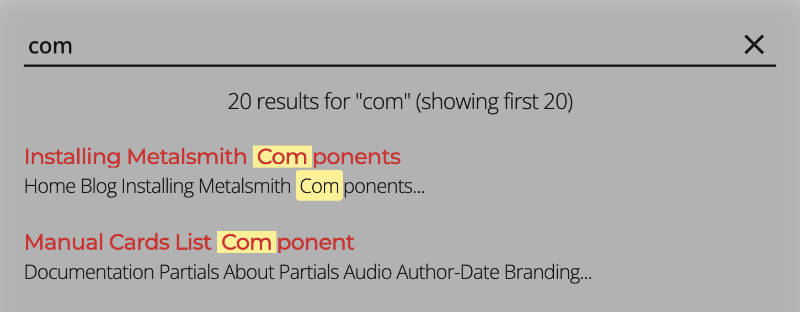
function displayResults(results, query) {
  const resultsHTML = results.map(result => {
    const item = result.item;

    // Add highlight parameter to URL
    const url = new URL(item.url, window.location.origin);
    url.searchParams.set('highlight', query);
    const highlightUrl = url.pathname + url.search + url.hash;

    return `
      <div class="search-result">
        <h3><a href="${highlightUrl}">${item.title}</a></h3>
        <p>${item.excerpt}</p>
      </div>
    `;
  }).join('');

  document.getElementById('search-results').innerHTML = resultsHTML;
}
Client-side Page Highlighting
On every page, we check for the highlight parameter and automatically highlight matching terms using the browser's native TreeWalker API:
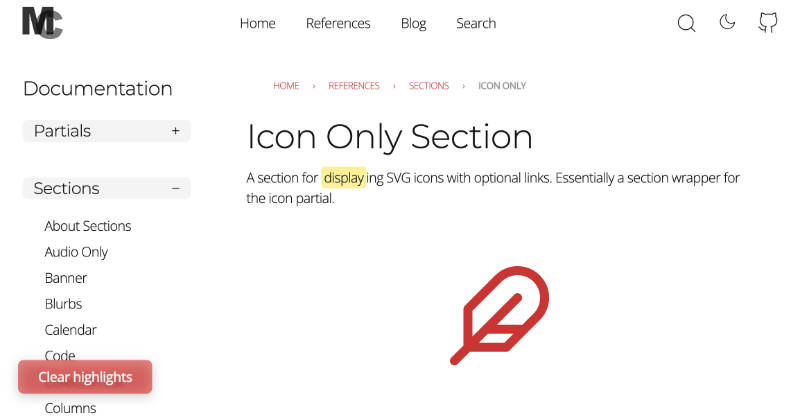
document.addEventListener('DOMContentLoaded', () => {
  const urlParams = new URLSearchParams(window.location.search);
  const highlightTerm = urlParams.get('highlight');

  if (highlightTerm && highlightTerm.trim().length >= 2) {
    highlightPageContent(highlightTerm.trim());
    showClearButton();
  }
});

function highlightPageContent(searchTerm) {
  // Use TreeWalker for efficient text node traversal
  const walker = document.createTreeWalker(
    document.body,
    NodeFilter.SHOW_TEXT,
    {
      acceptNode: function(node) {
        const parentTag = node.parentElement.tagName.toLowerCase();
        if (['script', 'style', 'mark'].includes(parentTag)) {
          return NodeFilter.FILTER_REJECT;
        }

        if (node.textContent.toLowerCase().includes(searchTerm.toLowerCase())) {
          return NodeFilter.FILTER_ACCEPT;
        }

        return NodeFilter.FILTER_REJECT;
      }
    }
  );

  const textNodes = [];
  let node;

  while (node = walker.nextNode()) {
    textNodes.push(node);
  }

  textNodes.reverse().forEach(textNode => {
    highlightTextNode(textNode, searchTerm);
  });
}

function highlightTextNode(textNode, searchTerm) {
  const text = textNode.textContent;
  const regex = new RegExp(`(${searchTerm.replace(/[.*+?^${}()|[\]\\]/g, '\\$&')})`, 'gi');

  if (regex.test(text)) {
    const highlightedHTML = text.replace(regex, '<mark data-highlight>$1</mark>');

    const temp = document.createElement('div');
    temp.innerHTML = highlightedHTML;

    const fragment = document.createDocumentFragment();
    while (temp.firstChild) {
      fragment.appendChild(temp.firstChild);
    }

    textNode.parentNode.replaceChild(fragment, textNode);
  }
}
The TreeWalker API provides efficient DOM traversal, and by processing nodes in reverse order, we avoid issues where DOM mutations affect subsequent nodes. This approach is significantly faster than recursive DOM traversal, especially on content-heavy pages.
Styling the Highlights
Add CSS to make highlighted terms visually distinct:
mark[data-highlight] {
  background: var(--color-highlight, #fef08a);
  color: var(--color-text-primary);
  padding: 0.1em 0.2em;
  border-radius: 0.2em;
  font-weight: var(--font-weight-medium);
}

.clear-highlights-button {
  position: fixed;
  top: var(--space-lg);
  right: var(--space-lg);
  background: var(--color-background-secondary);
  color: var(--color-text-secondary);
  border: 1px solid var(--color-border);
  border-radius: var(--border-radius);
  padding: var(--space-xs) var(--space-sm);
  cursor: pointer;
  z-index: 1000;
  transition: all 0.2s ease;
}
User Experience Enhancements
Auto-scrolling to First Match
Adding a hash fragment that targets the first highlighted term further enhances the experience. When users arrive at the page, it scrolls directly to the first occurrence of their search term rather than leaving them at the top of the page searching for the highlights.
Handling Hash Fragments
When your URLs include hash fragments for section navigation, place the highlight parameter before the hash:
const url = new URL(item.url, window.location.origin);
url.searchParams.set('highlight', query);
const highlightUrl = url.pathname + url.search + url.hash;
This preserves both behaviors. Users jump to the target section while their search terms remain highlighted throughout the page.
Clearing Highlights
Once users find what they're looking for, they need a way to remove the highlights:
function showClearButton() {
  const button = document.createElement('button');
  button.className = 'clear-highlights-button';
  button.innerHTML = '✕ Clear highlights';
  button.addEventListener('click', () => {
    window.location = window.location.pathname;
  });

  // Also respond to Escape key
  document.addEventListener('keydown', (event) => {
    if (event.key === 'Escape') {
      window.location = window.location.pathname;
    }
  });

  document.body.appendChild(button);
}
The function creates a visible, Clear highlights button that returns the page to it regular appearance.
Performance Considerations
The implementation prioritizes efficiency at every step. TreeWalker offers a more efficient traversal method than recursive DOM walking. By filtering to process only text nodes containing the search term, we minimize unnecessary operations. Processing nodes in reverse order avoids DOM mutation issues that could affect subsequent nodes. Debouncing search input prevents excessive processing during typing.
The highlight script only runs when needed, triggered by the presence of a query parameter. The entire highlighting implementation requires no additional libraries, keeping the bundle size minimal.
Conclusion
Combining metalsmith-search with client-side highlighting creates a powerful, user-friendly search experience that maintains all the performance benefits of static sites while providing the interactivity users expect.
The metalsmith-search plugin is available on npm and GitHub. See it in action at the Metalsmith Components Library, where this search system powers documentation discovery across hundreds of component examples.
Questions about the plugin? Find me on Bluesky.